
Speech and image generation
Enable speech input, spoken answers and image generation with supported models.
Where to work
Enable speech input, spoken answers and image generation with supported models.
Step-by-step
- In Model providers, configure speech recognition, TTS or text-to-image models for the required capability.
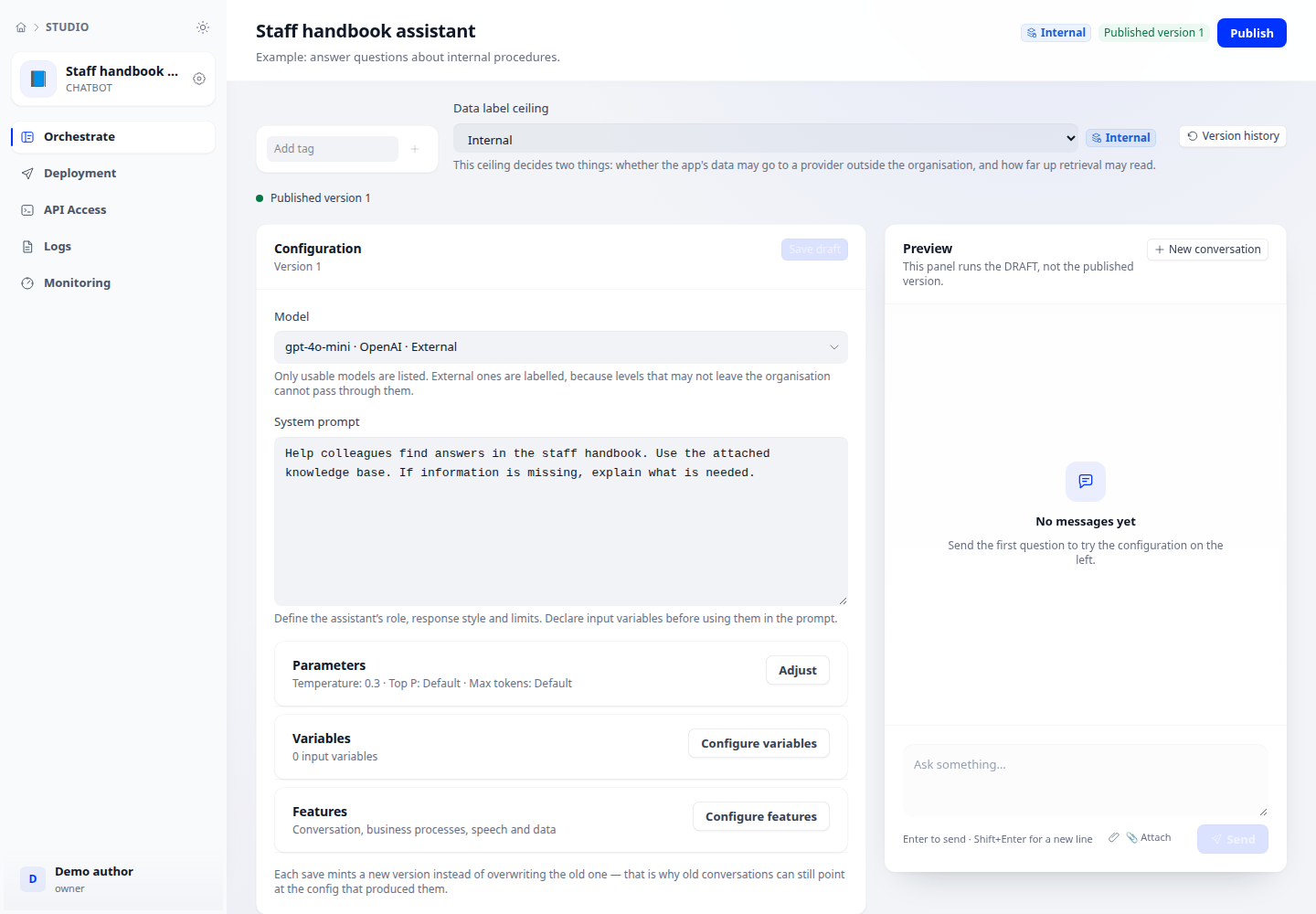
- Open application → Configuration → Features. Select each specialised model rather than only a general LLM.
- For TTS, enter a voice supported by the provider. For image generation, check that image_generate is available in the relevant tool configuration.
- Save and test a short spoken input, a spoken response or an image request. Inspect the output before publishing.
Expected result
The feature produces the expected output, rather than merely displaying a selected model.
If it does not work
Empty list: no usable model of that type is configured. Provider errors: check connectivity, voice name and browser microphone permission.