
Publish and share
Deliver a tested version through the right channel.
Before you begin
This guide stays on xdev.asia. To perform the task, use an account in your organization’s AI Studio workspace with access to this feature. Screenshots show a demonstration workspace; names and data are examples.
Find the screen
Deliver a tested version through the right channel.
Step 1
Open the app, test its draft and publish the version you want users to run. Draft edits need a new publication to reach users.
Step 2
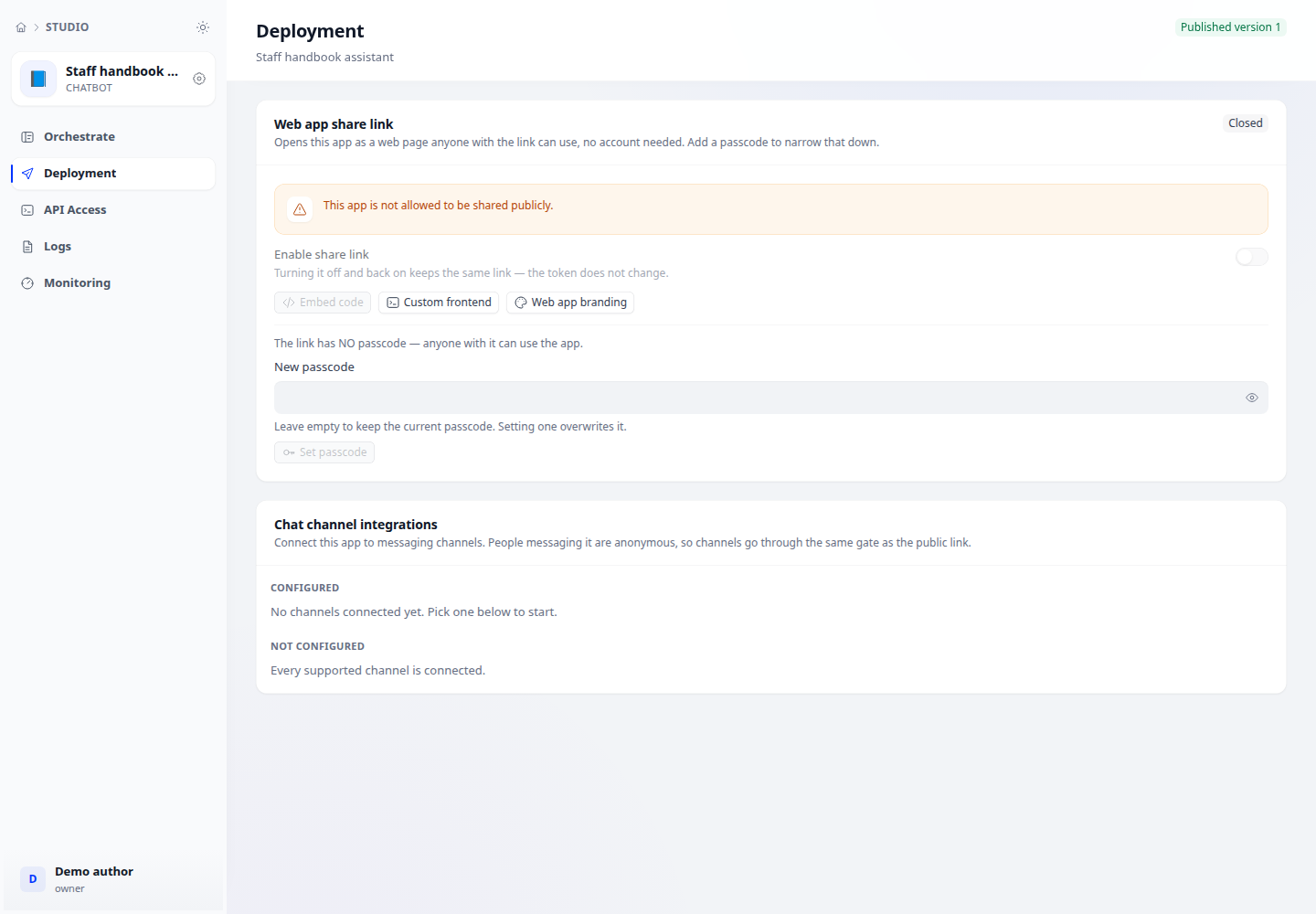
Open Deploy to configure a public web link, embedded widget or supported messaging channel. Supply the channel credentials and follow its setup instructions.
Step 3
Test the actual link or channel as an end user. Review access and sharing restrictions if the link is unavailable or the channel cannot reply.
Check your result
The published version is shown and the configured channel works in an end-user test. If web sharing is disabled, a published version alone does not create an accessible public link.
Versions and delivery channels
Instructions and configuration being edited belong to the draft. Check the published version before sharing a web app or calling API/MCP. When disabling sharing, recheck the public link; do not assume every API key has also been revoked.