
Set up branding, storage and identity
Configure workspace services from dedicated settings pages.
Before you begin
This guide stays on xdev.asia. To perform the task, use an account in your organization’s AI Studio workspace with access to this feature. Screenshots show a demonstration workspace; names and data are examples.
Find the screen
Configure workspace services from dedicated settings pages.
Step 1
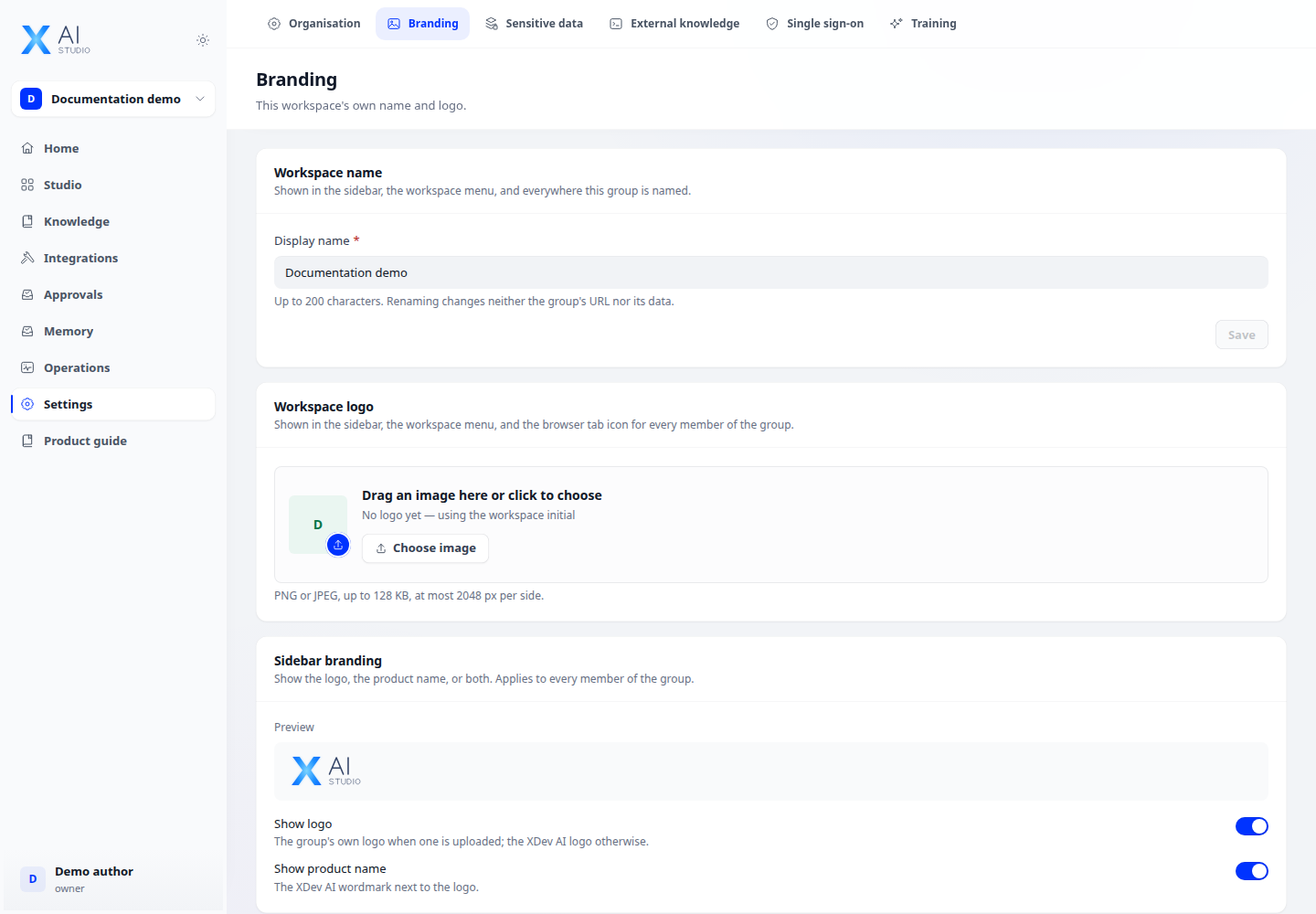
Use Branding to set the workspace identity. Open Storage to configure the available S3 storage settings and verify access before using it for documents.
Step 2
Use Identity for your organization’s supported sign-in provider and group mappings. Keep a working administrator sign-in while validating the configuration.
Step 3
Use External knowledge to configure a supported external knowledge service, then verify retrieval from an app that uses it. These settings require the corresponding permissions.
Check your result
The workspace name and logo appear in the navigation after saving. Validate storage, identity and external knowledge separately on their dedicated settings pages.