
Variables and input forms
Collect structured data before an application runs.
Where to work
Collect structured data before an application runs.
Step-by-step
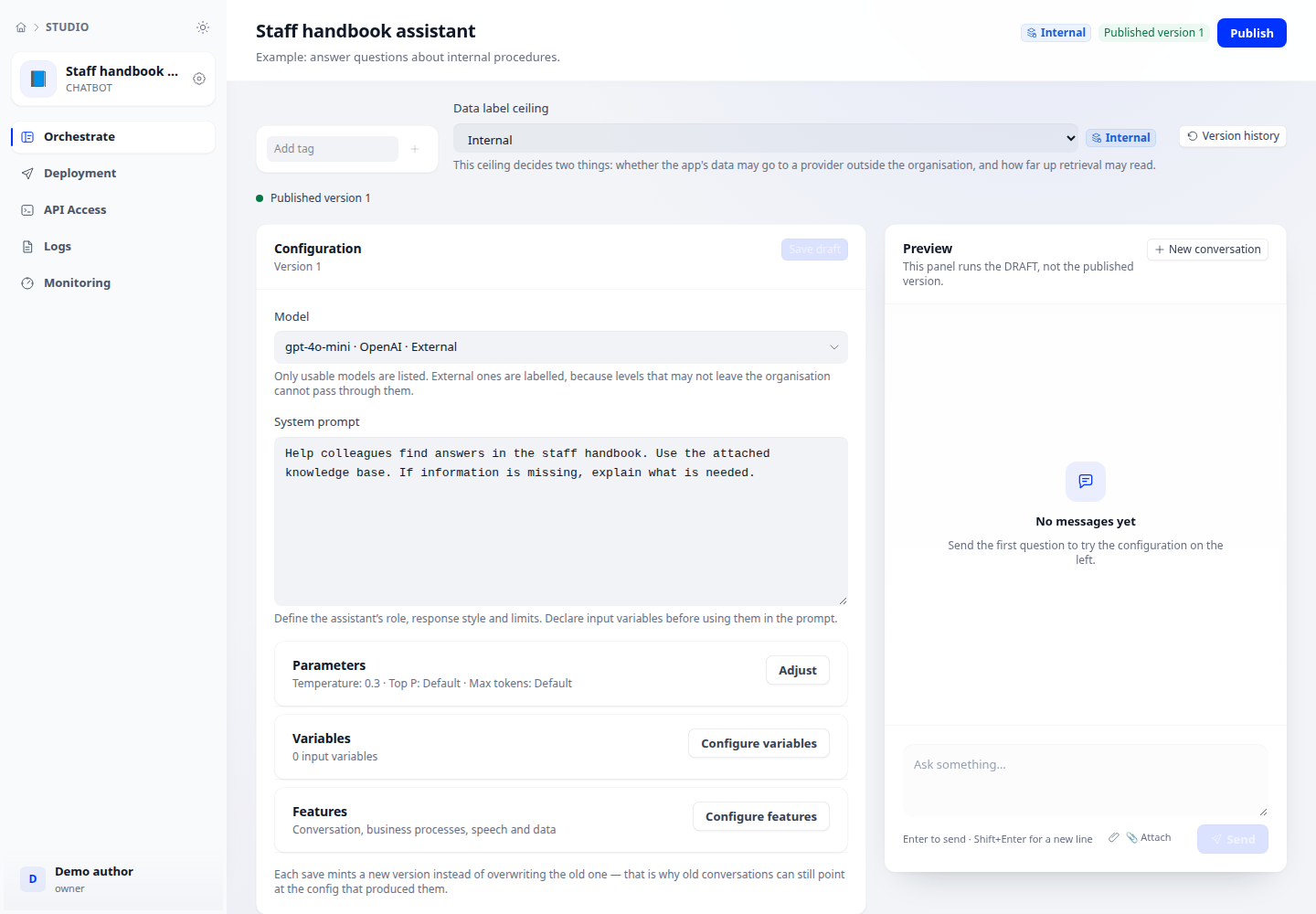
- Open the application → Configuration → Variables. Add a variable with an internal name and a user-facing label.
- Choose the data type. For a select field, enter one option per line and use a default value of the correct type.
- Set required status, length limits and sensitivity as appropriate. Order fields in the sequence users should complete them.
- Reference variable names in the instruction or opening-message template. Save the draft and test valid, missing and incorrectly typed values in preview.
Expected result
The form shows the correct labels, required fields are checked and values reach the intended instructions.
If it does not work
Cannot save: look for undeclared variables in templates. Invalid defaults: check numeric types, select options and variable names.